A
priPrinter
since version 5.5 has printer setup wizard. This wizard
is able to configure printer with or without automatic duplex unit.
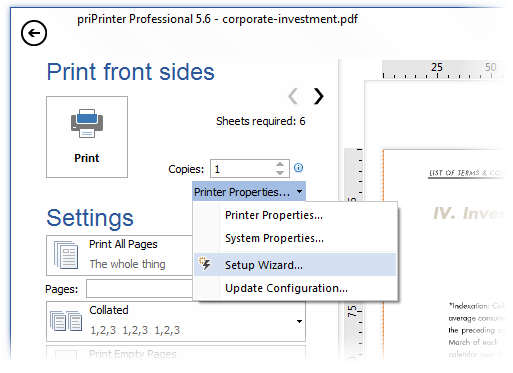
You can run this wizard from printer properties dialog,
tools tab. Or right in from print preview pane. See
image below.
B
Alternatively, you can do same task without wizard,
by changing options directly.
1. Please select this printer and open priPrinter properties for
your printer. You can do it by clicking on the following
button:
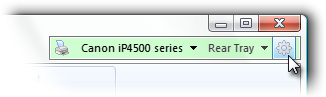
Alternatively you may go to File->Options dialog->Printers tab.
And double click on printer.
2. Following dialog will appear:
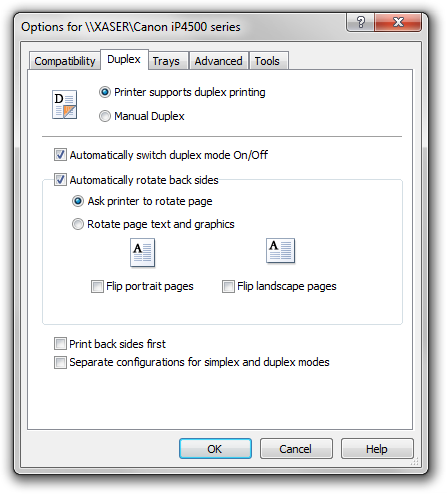
Following items should be checked automatically.
 Printer supports duplex printing
![[X]](img/checkbox.gif) Automatically switch duplex mode On/Off.
When checked, priPrinter should switch your printer
between simplex/duplex modes automatically.
Automatically switch duplex mode On/Off.
When checked, priPrinter should switch your printer
between simplex/duplex modes automatically.
Automatically rotate back sides
3. Now you should find right combination from the following items:
"Ask printer to rotate text and graphics", “Rotate text and graphics”,
“Flip portrait pages”, “Flip landscape pages”. These items
In case if you are having problems with landscape pages, you should
change “Flip landscape pages” checkbox and print sample document. This sample document may
contain only two pages.
In case if it does not work, select another radio button: “Rotate
text and graphics” and print again. In case if does not works change
“Flip landscape pages”. At this stage landscape pages should be printed
correctly.
"Ask printer to rotate text and graphics" is one of
the page flipping mode. In this mode priPrinter can provide information to physical printer about which edge, page will be
flipped.
Sometimes it does not work. We can use next one “Rotate text and
graphics”. It works via applying geometry transformation to texts and graphics on the page.
Now try to print portrait pages, in case is back side is wrongly
oriented you should change “Flip portrait pages”.
4. Print back sides first.
By default priPrinter prints document in normal order (1,2,3,4,5,6...), page by page. In case If this check box is checked then front sides and back sides will be changed (2,1,4,3,6,5...). This option could be
useful in case if your printer changes order of pages.
5. That's all.
After these steps your printer will work as it should. Please go to this dialog again, select tools tab click on “Save
Configuration...”.
It saves settings to xml file. Please send this file to us and
we will add these settings into list of known printers.
C
Some printers or specific drivers do not support
switching between simplex/duplex modes via standard API.
The only way to change this is in very own printer
properties dialog. For instance, some Xerox printers
operate in this way.
priPrinter 5.6 is able solve
this issue by maintaining two different configurations -
for simplex and for duplex modes. In order to activate
this mode you should check following item in the dialog
above:
Separate configurations for simplex and duplex
modes
After that you should activate single sided mode in
priPrinter switch your printer via
properties dialog to one sided mode. Next switch
priPrinter to duplex and and in properties
dialog switch your printer to duplex. You can do this in
any order. Of course you can change options any time.
Additional information is available in
priPrinter help.
All tutorials