
Quality and compatibility issues
Printer may produce wrong output, despite preview window shows correct results. It could be missed or wrong text characters, corrupted images, etc. Some specific graphics, like watermarkes ( especially with laser printers ) could be displayed in low quality.
It may happens all the time or from time to time - for instance depending on printer job. Such problems could be caused by bug in printer driver or it's limited functionality.
For such cases priPrinter has special raster print mode. When this mode is enabled, priPrinter generates full image of the page by rendering print job in memory. Printer only have to print that image. This operation is much simlpler and potentially shouldn't cause any problem. This simple approach allows to avoid almost all possible problems in the driver and achieve correct results.
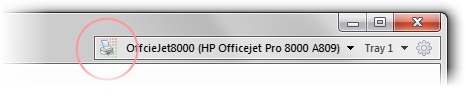
1In order to enable this feature let's click on
printer configuration icon:
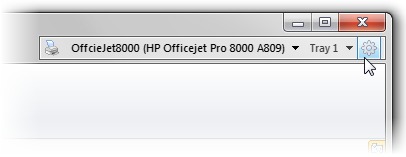
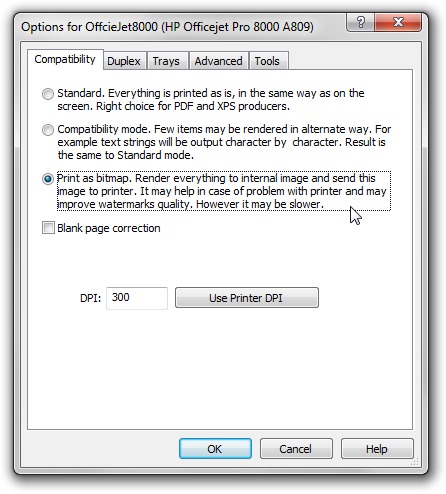
2Options for your printer will be opened. Please select Print As Bitmap ( RASTER ) mode.
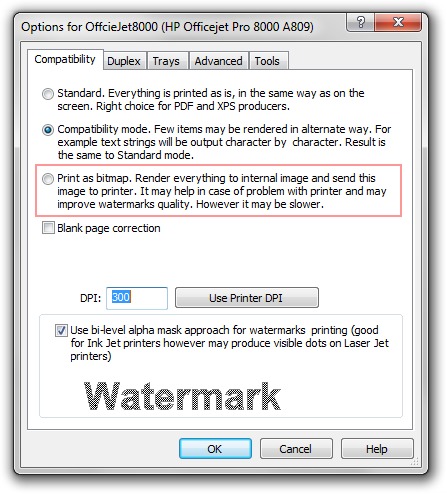
3In result of this selection, dialog will be changed. DPI here is the resolution of image in memory. When DPI is increasing, quality is getting better, however more memory will be used. Computer memory is not that important, but memory of the printer could be an issue. In case if your job is made of many pages, printing with high DPI values may be slow. Please take it into account. In most cases 300 is a good choice.
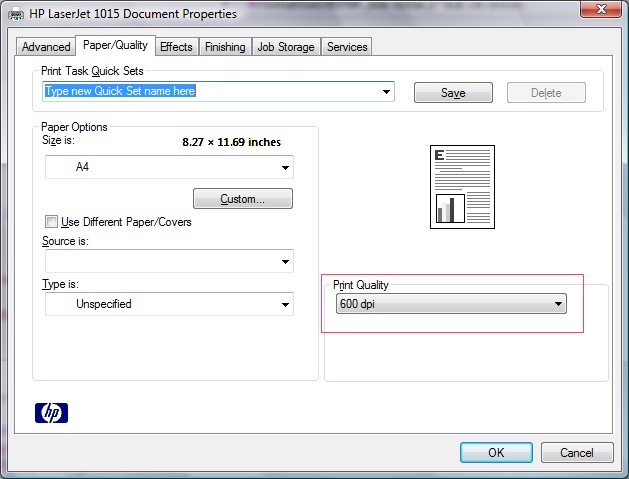
Please note that printer itself should operate at highest possible DPI. It allows printer to output color gradients in the best possible way and interpolate them more accurate. As an example see Options for HP Laser Jet printer.
4Now, after clicking OK, background of printer icon will be changed to color dots. It shows that your printer is in raster mode.
noteFor network printers this mode may be slower in comparision with standard mode. For local printers, speed is almost the same, sometimes raster mode works even faster.